

How To Upload Speed Tests To CoverageMap.com
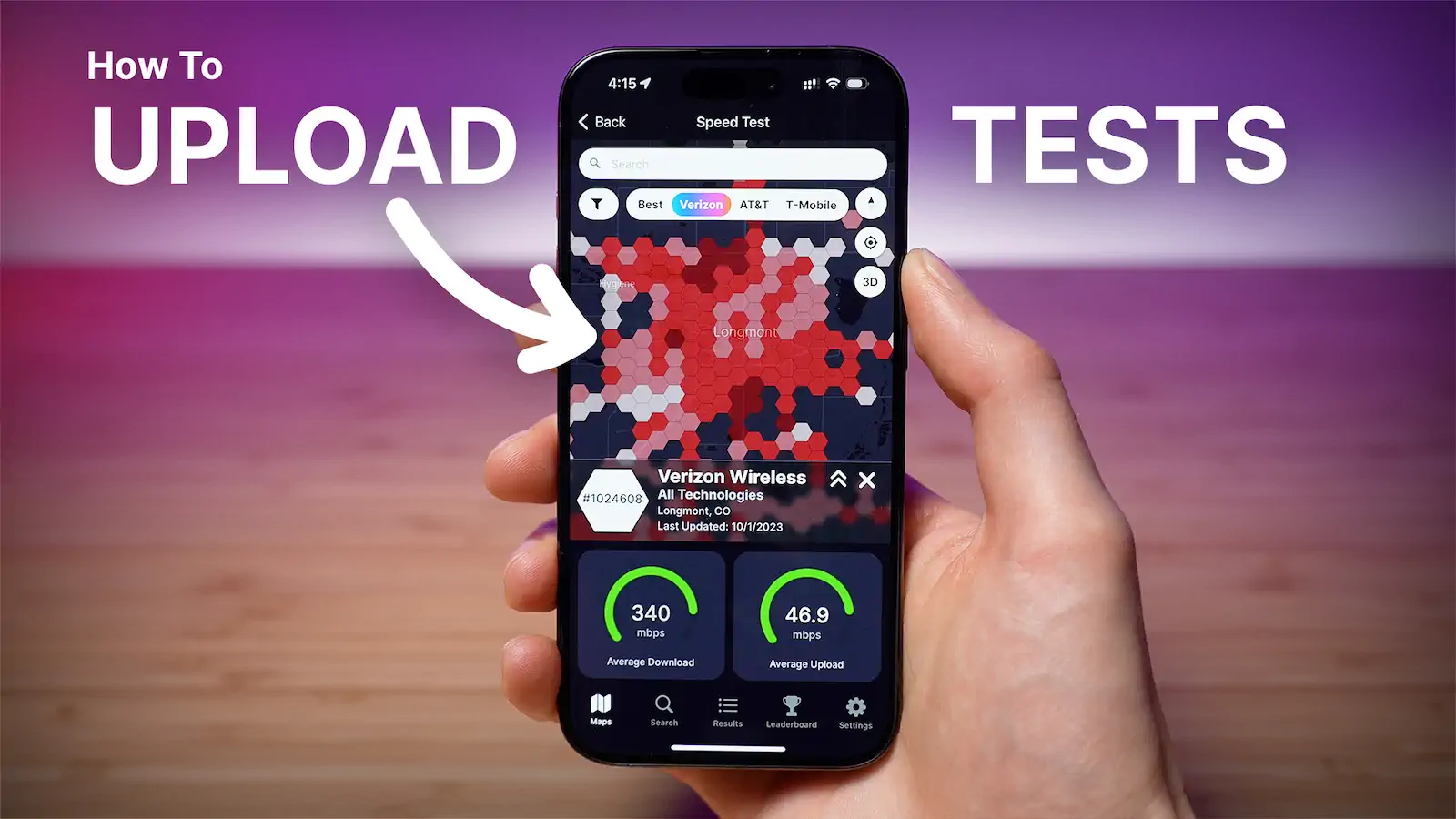
How To Upload Speed Tests To CoverageMap.com in 4 Steps
- Download a speed testing application. We recommend the free app called SpeedSmart, whom we partnered with.
- Run a cellular speed test. Using your preferred speed testing app of choice, turn off Wi-Fi and run a test on your cellular connection. Please note that running a speed test typically uses about 0.1GB - 1GB of data per test. This is important if your cell phone plan has a limited amount of data each month.
- Create a CoverageMap.com account and login. Creating an account keeps all your speed tests in one place. Plus, you will earn points and achievements for uploading your results.
- Import your speed tests. You can share your speed tests directly to the Coverage Map application. Your speed tests will automatically import and be instantly viewable on the Speed Map.
You can help build a more accurate cellular coverage map by uploading speed tests to CoverageMap.com.
In addition to creating better coverage maps for everyone, uploading speed tests to CoverageMap.com gives you four key benefits:
- You get a searchable interactive table of all your results
- You get your own personal map view
- You earn achievements
- You earn points for the leaderboard
1. Download A Speed Test App
Speed test apps are apps that test the speed and performance of your internet connection. The speed test app we recommend is called SpeedSmart.
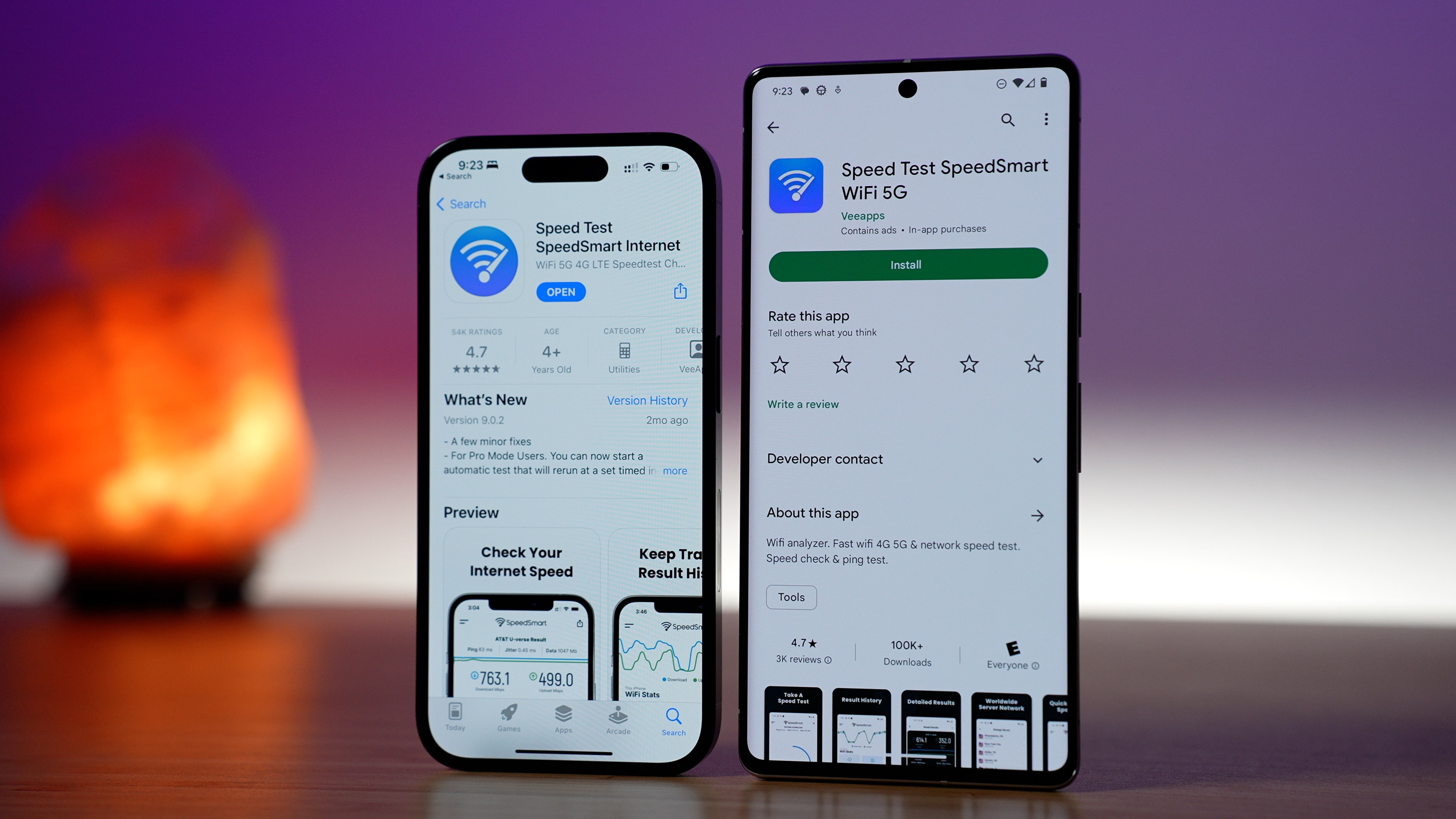
SpeedSmart is a free app for iPhone and Android that can test your network performance. We recommend SpeedSmart because it is completely free and available for both iPhone and Android. It has a great design, works on a network of hundreds of high-performance speed test servers for accurate results, and allows you to run as many tests as you want.
2. Run A Speed Test
The second step is to run a speed test. First, make sure your Wi-Fi is turned off so you are using your cellular connection. Then, open your speed test app of choice and run a test. The app will measure your cellular download speeds, upload speeds, ping, and jitter. We use all of these data points in our coverage map.
You can run as many tests as you would like in as many locations as you like.
We add all speed tests to the map, so the more areas you test in the more accurate the map will become.
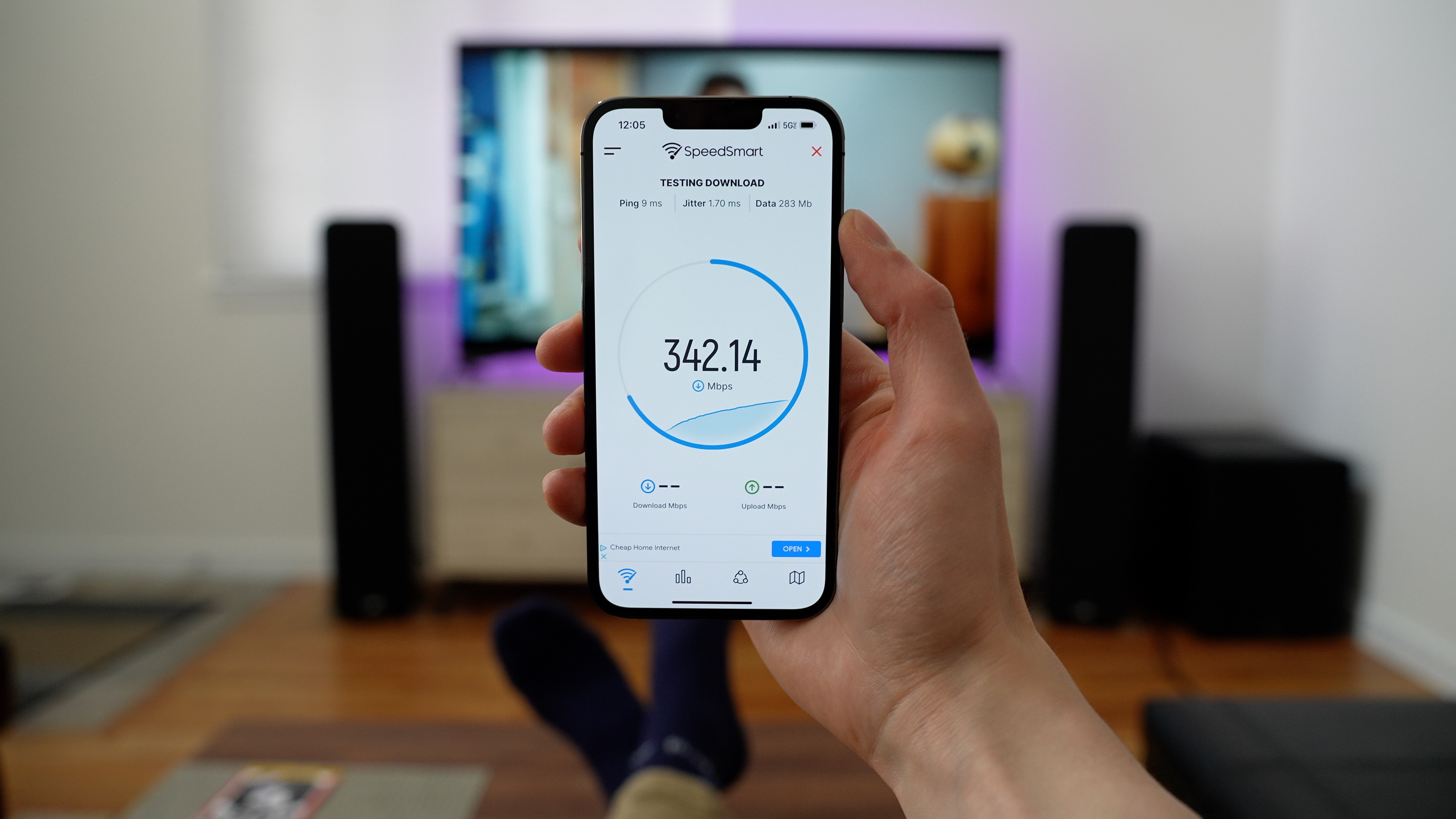
SpeedSmart measures download speed, upload speed, ping, and jitter.
Be mindful that cellular speed tests consume a lot of cellular data, especially if you have a fast connection. You typically want a high data plan with 20GB, 30GB, or even unlimited data if you plan to run more than just one or two speed tests.
3. Create Your Free CoverageMap.com Account
On the website or mobile application, create a free CoverageMap.com account. We support both sign in with Apple and sign in with Google.
If you ever choose to no longer participate in this project in the future, you will always have the option to fully delete your account and all the speed tests you have uploaded.
4. Upload Your Speed Tests!
Once your account is created, go back to the speed test app and tap the "Export Results" button. This typically looks like a box with an arrow coming out of it. The speed test app will generate a CSV file of all your speed tests. A share sheet should pop up, and you will be able to share the CSV file directly to the Coverage Map app. Your speed tests will automatically be uploaded to your account and mapped in real-time. When you go back to the Coverage Map app, you will see your speed tests on the Speed Map.
Other methods of uploading your speed tests include:
- Emailing the CSV file to upload@coveragemap.com (the speed tests will be attributed to the CoverageMap.com account matching the email address you sent the email from)
- Saving the CSV file to your device and then tapping the "upload" button from the Settings tab in the app
- Emailing yourself the CSV file and uploading the results on the web browser version of the map
We appreciate you taking the time to upload your speed test results, and for helping to build better, more accurate coverage maps for everyone.